Why Your Farm Sensor Shows “Connected” But Isn’t Sending Data
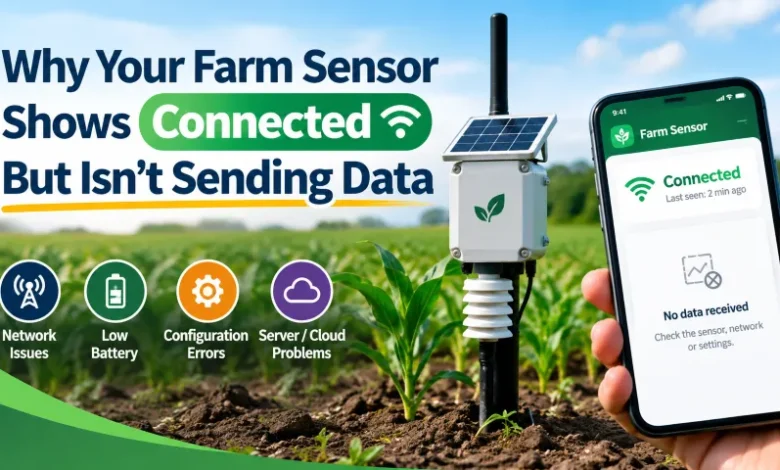
Your soil moisture sensor’s indicator light is on. Your irrigation controller says it’s online. Your weather station app shows a green “connected” status. Yet the readings on your dashboard haven’t updated in hours — or the numbers look frozen at yesterday’s values. Everything seems fine, doesn’t it? It isn’t as farm sensor not sending data.
This is one of the most confusing problems in digital agriculture, and it trips up even experienced farm managers. The good news is that the cause is usually far simpler than it looks, even though a lot of misinformation surrounds it.
What That Status Light Actually Tells You (and What It Doesn’t)
A status or power LED on a soil sensor, irrigation controller, or IoT weather node has one job: confirming the device is receiving power and has booted up. It says nothing about whether that device is actually collecting accurate readings or successfully transmitting them to your farm management platform.
Between the sensor in the ground and the data appearing on your phone or dashboard, there are several separate systems: the sensor probe itself, the local transmitter or gateway, the wireless or cellular connection, the cloud platform ingesting the data, and the app displaying it. Any single link in that chain can fail quietly while every light on the hardware stays green.
Think of it like a canal with the outlet gate shut. Water is sitting in the channel under full pressure, but nothing is actually reaching the field.
The Most Common Reasons Digital Agriculture Systems Go Silent
In the majority of cases, the problem isn’t a dead sensor or a burned-out board. It’s one of a handful of far more common issues.
Dust, moisture, and residue buildup on sensor probes and connector ports is the single most overlooked cause. Soil moisture probes and leaf-wetness sensors sit exposed to dust, irrigation water, and crop residue all season. A thin film of mineral buildup on the contacts is enough to break a reliable connection, even though the power light shows everything is normal.
Firmware power-saving modes are another frequent culprit. Many battery-powered field sensors and gateways include a deep-sleep or reduced-reporting mode that kicks in automatically to conserve battery, especially after a firmware update. The device is technically “online,” but it may only report once every few hours instead of continuously, which looks identical to a dead sensor if you’re checking in real time.
Outdated gateway or app firmware can cause the platform to misread incoming data packets entirely. The dashboard might show “No data” or a flatlined reading even though the sensor is transmitting correctly. Updating the gateway firmware or reinstalling the companion app usually resolves this immediately.
Aging batteries in remote sensor nodes behave unpredictably before they fail outright. As the battery voltage drops below a safe threshold, many sensors intentionally stop transmitting to protect their circuitry, even while the indicator LED continues to blink normally.
Checking Whether a Sensor Node Actually Needs Replacing
Most farm sensor platforms include a diagnostic panel — usually under “Device Health” or “Node Status” in the companion app — that shows signal strength, last successful transmission time, and battery voltage for each node. If battery voltage has dropped significantly below the manufacturer’s rated minimum, or the last successful sync is more than a full reporting cycle old, that node is the likely source of your problem.
For agri-tech teams who want to go deeper into diagnosing hardware issues on field equipment and connected devices, ZETO covers technical troubleshooting in detail, from driver-level fixes to hardware diagnostics, which is useful groundwork before deciding between repair and replacement. If your operation also relies on rugged laptops for field data review or drone mapping software, Laptopmag.com is a solid resource for comparing device durability and battery performance across models suited to outdoor use.
How to Actually Fix It — Work Through This in Order
Go through these from easiest to most involved. Most connectivity issues in digital agriculture setups are resolved within the first few steps.
- Check the gateway or hub’s own internet connection first — a surprising number of “dead sensor” complaints trace back to a router or SIM card issue at the base station, not the field sensor at all.
- Physically inspect the sensor probe and connector for dirt, corrosion, or moisture intrusion, especially after irrigation or heavy rain.
- Clean contacts and probe surfaces gently with a dry cloth or soft brush — never use metal tools or abrasive materials on sensor electrodes.
- Check the device’s power-saving or reporting-interval settings in the companion app; confirm it wasn’t reset to a longer interval after an update.
- Restart the gateway or hub device, then force a manual sync from the app if that option is available.
- Update the firmware on both the sensor node and the gateway — manufacturers regularly patch connectivity bugs, particularly after major app updates.
- Do a full power cycle: remove the battery or disconnect power from the node for thirty seconds, then reconnect.
- If you have a spare or backup sensor node, swap it in to isolate whether the fault is the node itself or the gateway/network.
When the Cause Is a Damaged Sensor or Gateway Hardware
If none of the steps above resolve it, you’re likely looking at a physical fault. A cracked probe housing or corroded connector is one of the most common hardware failures in field-deployed sensors — constant exposure to soil moisture, temperature swings, and physical disturbance from tillage or livestock takes a toll over a season. In these cases, the sensor may power on and blink normally while never actually completing a valid reading.
A failing transmitter chip inside the sensor or gateway is less common but does happen, particularly in units that have been submerged, exposed to lightning-induced power surges, or used well beyond their rated lifespan. This typically requires replacement rather than repair.
A quick way to test a suspected loose connection: gently wiggle the sensor’s cable or connector while checking the app for a live reading. If the value jumps or the connection drops out, the fault is a physical connection issue rather than a software or battery problem.